
This help section is for existing flymedia clients.
All work requests must be submitted via email, large files (> 10MB) can be supplied digitally on any format, or shared via an online file sharing service such as WeTransfer.
When a work request is submitted by the client, we will try to complete this quickly & accurately and therefore as inexpensively as possible. This cannot be achieved if work is supplied in a rejected file type.
Method:
1. The Client (you) submits a work request to us (flymedia) via email.
2a. If the request is not clear we will contact you to clarify. This process will add to the speed at which we can complete your request.
2b. if the request is clear we will complete the work and confirm its completion by the return of supplied email. We will ask you to check our work and that it has been completed correctly, and let us know if there is a problem.
If you would like to supply information in a format other than those listed, feel free to do so, but your invoice will reflect the additional work undertaken.
Text and Changes
If information is supplied in an accepted format, there can be no error on the part of flymedia with regards to spelling, grammar and punctuation. These factors must be decided by the client.
| Accepted text types | |
| An email with text typed in it |  |
| An email with text document(s) attached | |
| Word document | |
| Open Office Document | |
| PDF file | |
| Rejected text types | |
| Handwritten or typed words on paper |  |
| Scanned handwritten or typed words then emailed digitally | |
| Faxed documents | |
| Words spoken to us over the phone | |
| Words left for us on our answer machine | |
| SMS text messages | |
Images
Images can be supplied in a digital format or as a hard copy.
If files are supplied in a digital format, they must be named consistently. All files are to be named in lower case, with no special characters and all spaces replaced with hyphens (-). e.g.: ‘picture-of-a-dog-01.jpg’ NOT ‘Picture of a Dog.jpg’
| Accepted image types | |
| Adobe PhotoShop | |
| TIFF, EPS, PDF | |
| Adobe Illustrator | |
| Photographs | |
| Compressed files: JPEG, GIF or PNG * | |
| Digital Prints * | |
* Please note that compressed file types do not readily lend themselves to adaptation and editing, so we recommend that you try to supply files in their best available quality.
Better Images
Good images will improve the overall look of your website. We can recommend photographers who we have used before, however, if your budget does not run to this, iStockPhoto is a really great resource where you can find any image you could ever think of, and download them for a very small fee. Click here to view 1000s of images.
https://unsplash.com/ is like stock, but free. It’s polite to credit the photographer if you use one of their images.
We can manipulate your images, and edit/crop / improve/fix them, but if you would prefer to do this yourself we are happy for you to do so. Basic image manipulation can be achieved using “Google’s Picasa – The easy way to find, edit and share your photos” Click here to visit. If you would like more options we recommend “Gimp” Like PhotoShop, but free. Click here to download it for free.
Image Sizes
There is a magic resolution formula for the image you want to print.
To find out if your image is large enough for your end-use without pixelating the image, divide the number of pixels by the resolution. For example:
3000 pixels wide at 300 dpi = 10 inches wide
This means the printed piece can be a max of 10 inches before some loss of image quality. If your printer only required 150 dpi, you could print the image as large as 20 inches.
However, the web is different. Your screen resolution is 72 dpi, so if your image is 72 x 72 dpi (a square) then it will display as a 1-inch image. You don’t need to supply high-resolution images for use on the web, but bigger is better if any work or cropping needs doing to the image.
What size image do I need for web or print?

Site Map
A visual representation of your proposed website is extremely beneficial to the creation process. It allows both client and designer to see how the site pages link and are accessed. Below is a basic site map as an example.
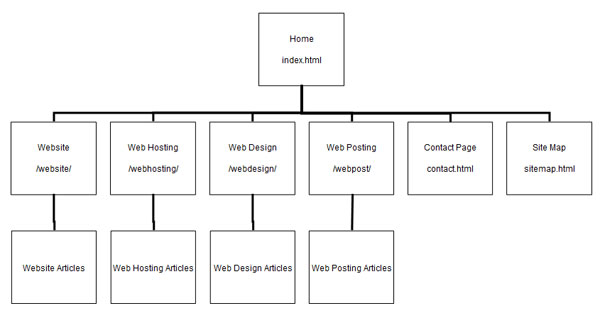
We use Bubbl.us to draw our site maps. you can sign up and create your own, which can be shared when completed. Click here to visit Bubbl.us.
Other
links:
If you would like to indicate a website link within your text document it should be formatted as follows:
text text text [http://www.website.com – link text] text text text.
you would write:
our website design company [https://www.flymedia.co.uk – flymedia] is very helpful.
it would show on the internet as follows:
our website design company flymedia is very helpful.
